
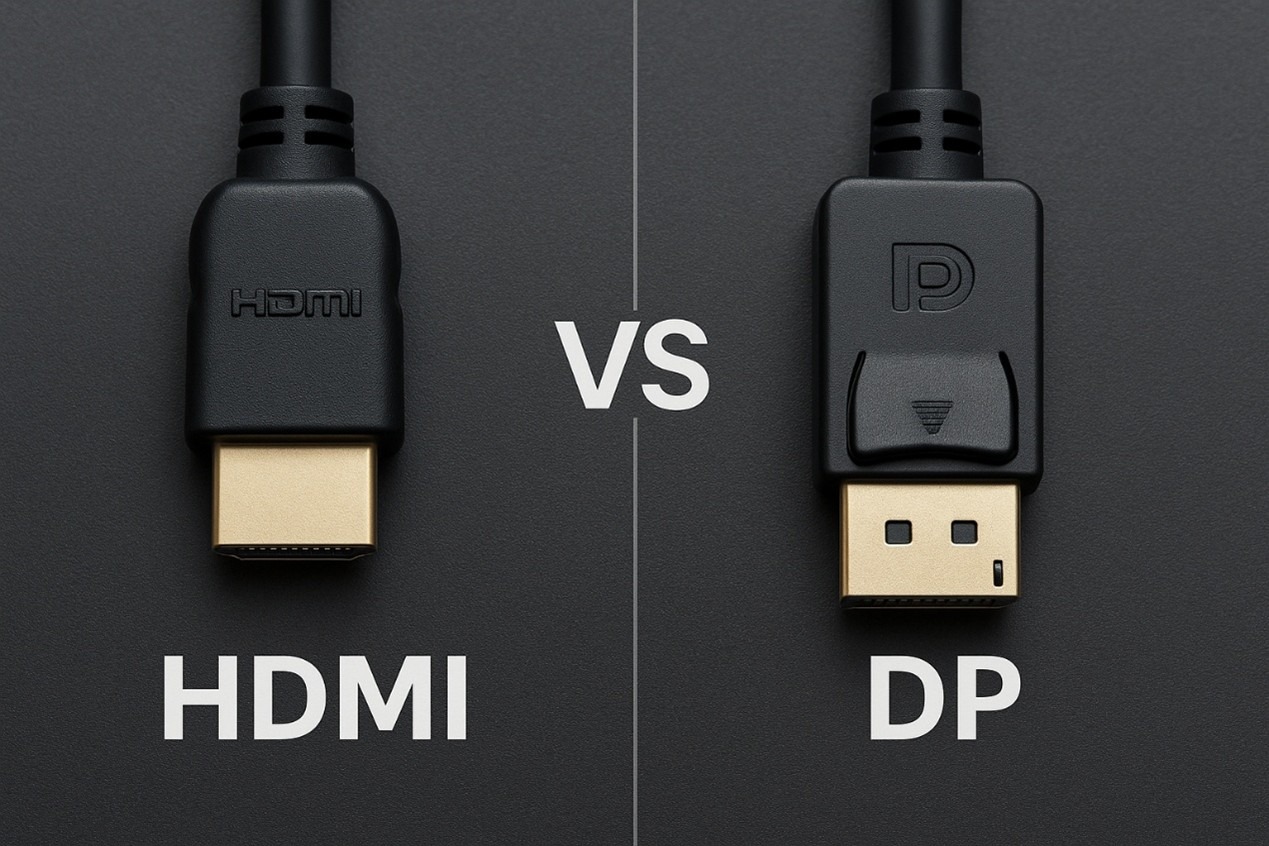
Most people pick the cable that came in the box, then blame the monitor when the picture does not feel right. That is backwards. DisplayPort 2.1 is usually the smarter pick for a new high-end PC monitor, while HDMI 2.1 is often the better choice for TVs, game consoles, soundbars, and living-room gear. The right answer depends less on brand loyalty and more on what sits at both ends of the cable.
For American buyers building a desktop setup, upgrading a home office, or sorting out a 4K 120Hz setup for gaming, the connection standard can decide refresh rate, HDR behavior, audio routing, and how annoying your desk becomes. Good consumer tech coverage often misses this boring truth: the port matters only when your GPU, display, and cable all support the same target.
A shiny logo is not enough. VESA says UHBR20-capable DP hardware can reach 80 Gbps over four lanes, while HDMI’s official Ultra High Speed cable guidance ties HDMI 2.1 systems to up to 48 Gbps. That gap sounds simple, but the buying choice is not. Your best cable is the one that fits your screen, your room, and your upgrade path.
The Real Difference Is Not the Plug Shape
The cable debate gets messy because people compare numbers without asking what job the connection has to do. A desk monitor and a living-room TV may both show 4K, but they live in different worlds. One sits two feet from your face and chases frame rate. The other may run through a receiver, soundbar, console, and wall plate before it reaches the screen.
Why PC monitors lean toward DisplayPort
DisplayPort grew up around computers. That history still matters. It is common on graphics cards, workstation monitors, docking stations, and USB-C video paths. If you are connecting a desktop tower to a 27-inch 1440p esports display or a 32-inch 4K creator monitor, the DP port is often the first one worth testing.
The reason is control. PC users care about refresh rate menus, adaptive sync, multiple screens, and high color depth. A gaming monitor connection that works well on paper can still feel wrong if Windows drops the refresh rate after sleep or a cheap cable forces a lower link speed.
A concrete example helps. Say you buy a 4K 240Hz OLED monitor for a custom PC in Dallas. The monitor includes both HDMI and DP. Your graphics card supports the newer DP link rate, and the monitor does too. In that setup, DP gives you the cleaner path because it was built around PC display behavior, not home theater routing.
Why TVs and consoles still favor HDMI
HDMI owns the living room for a reason. Your PlayStation, Xbox, Apple TV, Roku box, Blu-ray player, AV receiver, and soundbar are far more likely to expect HDMI than DP. That is not an accident. HDMI was shaped around consumer video and audio, including features like eARC, which helps send higher-end audio from a TV back to a soundbar or receiver. HDMI Forum materials also list gaming features such as VRR and ALLM under HDMI specifications.
This is where the “bigger number wins” argument falls apart. A living-room buyer in Ohio with a 65-inch OLED TV, Xbox Series X, and Dolby Atmos soundbar should not care that DP can carry more raw video data in some setups. The TV may not even have a DP input.
HDMI 2.1 cable quality still matters. Look for an official Ultra High Speed certification label, not vague store-page language. A random “8K cable” can be marketing smoke. The certified label and QR verification matter more than the bold print on the Amazon thumbnail.
Where DisplayPort 2.1 Wins for Serious PC Screens
Once you leave the couch and sit at a desk, the balance shifts. High refresh monitors, multi-display rigs, and USB-C docks give DP more chances to shine. It is not magic. It is fit.
Bandwidth helps when the screen gets demanding
Bandwidth is not the whole story, but it sets the ceiling. VESA lists DP’s top UHBR20 mode at 80 Gbps over four lanes, with a maximum payload figure of 77.37 Gbps in its FAQ. That extra room matters when you push resolution, refresh rate, HDR, and color depth at the same time.
Think about a video editor in Los Angeles using a high-refresh 4K monitor for timeline work and gaming after hours. The goal is not only “can it show an image?” The goal is whether the screen can run the mode you paid for without hidden tradeoffs. A port that forces compression sooner, lowers chroma detail, or limits refresh can make a premium monitor feel ordinary.
The counterintuitive part: many people do not need the top DP mode today. A strong DP 1.4 or HDMI path may already handle their current monitor. The reason to care is not bragging rights. It is avoiding a second cable purchase when the next screen raises the bar.
Multi-monitor desks need fewer compromises
DP also has an edge for complex desks. VESA points to Multi-Stream Transport, which allows multiple displays from one DP source connection. That can matter for office setups, creator stations, trading desks, and anyone who hates crawling behind a tower every month.
A New York accountant with two 1440p monitors and a USB-C laptop dock may not be chasing esports refresh rates. Still, DP can make the desk easier to run. One dock, one cable to the laptop, two external screens, fewer daily headaches. That is not glamorous, but it is the kind of win people feel every morning.
There is a catch. Full performance depends on the whole chain. VESA tells buyers to look for certified DP80 cables for UHBR20-capable GPUs and monitors, and its product database lists certified DP40, DP54, and DP80 cable models. A cheap cable can quietly become the weakest part of an expensive setup.
When HDMI 2.1 Is the Better Everyday Choice
HDMI gets mocked by some PC builders because it feels ordinary. That is unfair. Ordinary can be exactly what you want when every device in your room expects the same port. For many homes, HDMI is not the lesser choice. It is the practical one.
Console gaming is built around HDMI
A console gamer with a 4K TV should start with HDMI. The latest PlayStation and Xbox hardware is built around that port, and so are mainstream gaming TVs sold at Best Buy, Costco, Walmart, and Amazon. If your target is a 4K 120Hz setup on a living-room TV, HDMI is the path that matches the hardware.
This matters during setup. TV menus often label HDMI inputs by feature level. One port may support eARC. Two may support 4K at 120Hz. Another may be limited. The cable is only one piece; the TV input matters too.
The non-obvious lesson is that HDMI trouble often looks like console trouble. A player may blame the Xbox when VRR is missing, or blame the TV when 120Hz does not appear. The actual fix may be moving the cable to the right HDMI input and enabling the TV’s enhanced input mode.
Audio and home theater make HDMI hard to replace
DP can carry audio, but home theater gear speaks HDMI. Soundbars, receivers, and TVs are designed around it. If you care about one remote, eARC, Dolby Atmos routing, and switching between streaming boxes and consoles, HDMI keeps the whole room on the same language.
A family in Phoenix with a wall-mounted TV and a soundbar under it should not design the room around a PC-first connector. Run a certified HDMI 2.1 cable, label both ends before the wall plate goes on, and leave enough slack for future gear. That small planning step can save a Saturday.
For buyers who need more context on related display choices, TV refresh rate buying tips and gaming monitor setup mistakes are useful internal guides to connect before choosing ports. The point is simple: the room decides more than the spec sheet.
The Cable, Port, and Device Chain Decide the Final Result
The most expensive cable in the cart may not fix a weak port. The newest port may not fix an old display. This is the part shoppers skip, because it feels dull. It is also where most connection problems begin.
Read the exact port specs before buying
Do not stop at “has HDMI” or “has DisplayPort.” Check the exact version, supported link rate, maximum refresh at your resolution, and whether the port shares bandwidth with anything else. Laptop ports are especially tricky because USB-C may carry DP video, USB data, charging, or some mix of those.
VESA says DP over USB-C can carry video, USB data, and power through the same connector when the device supports that mode. It also notes that a USB-C connector without DP Alt Mode will not send video to the screen. That one detail explains many “my monitor is broken” moments.
Here is a real-world test. A student buys a slim Windows laptop, a 144Hz monitor, and a USB-C hub. The monitor works, but only at 60Hz. The laptop may support video, the hub may limit bandwidth, or the cable may not carry the needed lanes. The port name alone did not answer the question.
Certification beats cable marketing
Cable packaging has become a small circus. “8K,” “pro,” “gaming,” and “future ready” do not tell you enough. For HDMI, the official Ultra High Speed cable program includes certification labels and testing at authorized centers. HDMI also says packaging labels can be scanned to verify status.
For DP, look for the right class for your goal. DP80 matters when both ends can use the higher UHBR20 path. DP54 and DP40 may be fine for less demanding gear. Buying the highest-rated cable is not always needed, but buying an unknown one for a premium monitor is false savings.
The hidden insight is that a short cable is often better than a fancy long one. High-bandwidth video does not love distance. VESA announced DP80LL active cable work to support UHBR20 over active cables up to three meters, which shows how hard the distance problem becomes at top speeds.
Conclusion
The smartest choice is not a universal winner. It is the connection that gives your exact hardware the cleanest route to the screen. For most PC-first desks, especially high-refresh monitors and multi-screen workstations, DisplayPort 2.1 is the stronger bet when the GPU, monitor, and cable all support the right mode. For TVs, consoles, soundbars, and AV receivers, HDMI 2.1 is still the safer everyday pick because the whole living-room chain expects it.
Do not buy by version number alone. Check the display’s real input limits, the GPU or console output, the cable certification, and the refresh rate you plan to use. A plain cable that matches the standard can beat an expensive cable with vague claims.
Start with the device you use most. Then choose the cable that lets that device run at its best, without adapters, mystery settings, or hidden compromises.
Frequently Asked Questions
Is HDMI 2.1 better than DisplayPort for gaming?
For console gaming on a TV, HDMI 2.1 is usually better because consoles and gaming TVs are built around it. For PC gaming on a high-refresh monitor, DP often makes more sense, especially when your graphics card and monitor support the stronger link modes.
Do I need a special HDMI 2.1 cable for 4K 120Hz?
Yes, you should use a certified Ultra High Speed HDMI cable for a 4K 120Hz setup. Avoid relying on vague “8K” wording alone. Check for the official certification label and scan it when possible to reduce the chance of signal problems.
Can I use DisplayPort on a TV?
Some TVs include DP, but most consumer TVs in the U.S. rely on HDMI. A DP-to-HDMI adapter may work for basic video, yet it can limit refresh rate, VRR, HDR, or audio features. Native HDMI is usually cleaner for TV use.
Why does my monitor show 60Hz instead of 144Hz?
The most common causes are the wrong port, a weak cable, a limited adapter, or a setting inside Windows, macOS, or the monitor menu. Check the display input specs first, then confirm the cable rating and refresh rate setting in your operating system.
Is DisplayPort better for multiple monitors?
Often, yes. DP has strong support for PC monitor setups and can help with multi-screen desks, especially through docks or MST-capable hardware. Results still depend on your laptop, GPU, dock, cable, and the resolution of each display.
Does HDMI 2.1 support VRR?
Yes, HDMI specifications include gaming features such as VRR and ALLM. On real products, support can vary by TV model, input port, and device settings. Always check the TV’s input labels and gaming menu before assuming every port behaves the same.
Should I use HDMI or DisplayPort for a 4K monitor?
For a PC 4K monitor, try DP first when the monitor and graphics card support the target refresh rate. Use HDMI when the display’s HDMI input offers the mode you need, or when connecting consoles, media boxes, or home theater audio gear.
Are cheap cables safe to use with expensive monitors?
They may work at lower settings, but high refresh rates and HDR can expose weak cables fast. Use certified cables from known brands, keep cable length reasonable, and match the cable rating to the display mode you plan to run.